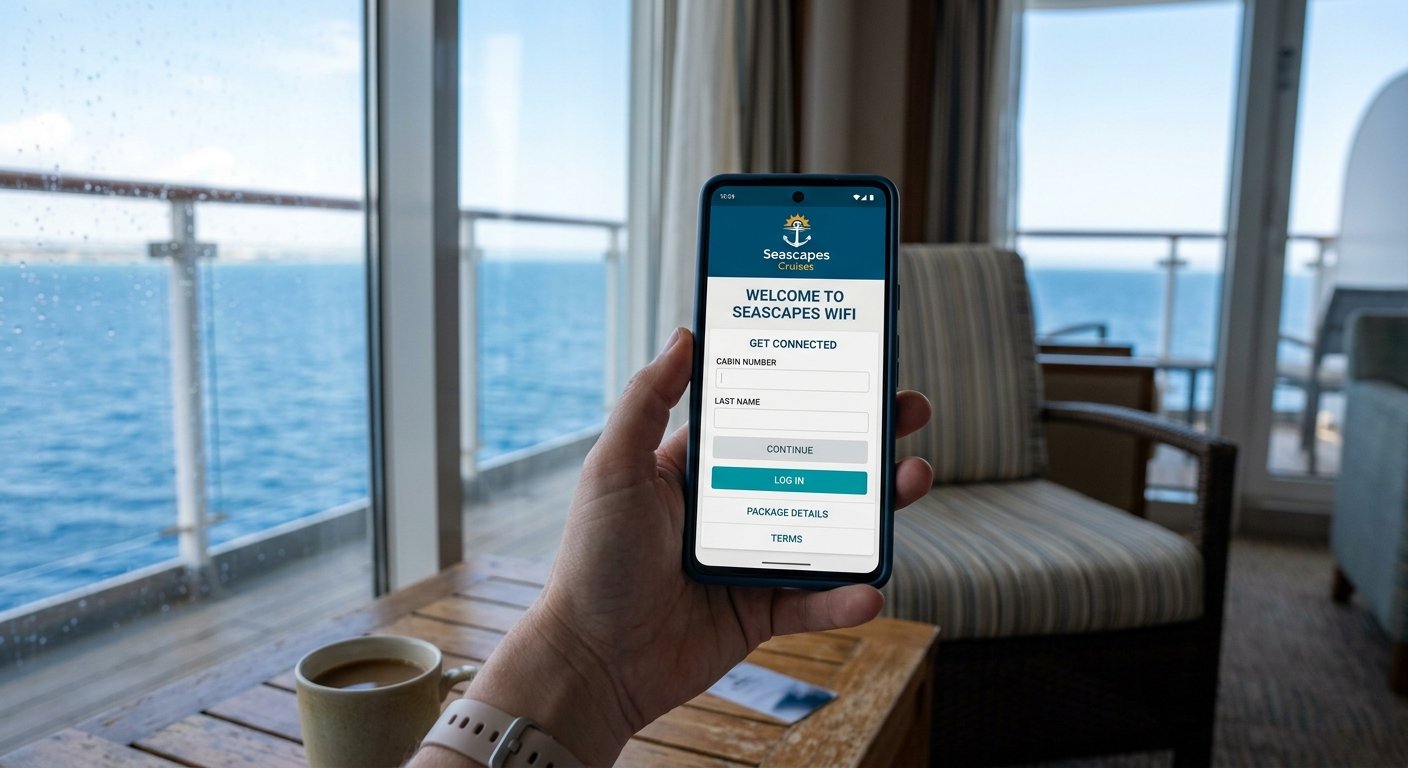
Getting online in the middle of the ocean used to mean staring at a spinning wheel and giving up. That has changed a lot on Norwegian Cruise Line ships, and nclwifi.com is the page that makes it happen. If you are heading out on an NCL sailing soon, understanding how this login portal works before you board can save you time, money, and a fair bit of frustration.
This guide walks through everything you need to know about nclwifi com, from your first login to fixing connection problems mid-cruise. It is written for real passengers, not tech experts, so every step is explained in plain language.
What Is Nclwifi com
Nclwifi com is the official captive portal Norwegian Cruise Line uses for onboard internet access. A captive portal is simply a login page your device is automatically redirected to when you try to browse the internet while connected to a specific WiFi network. Once you connect your phone, tablet, or laptop to the ship’s wireless network, opening any browser should send you straight to this page.
This is not a general travel website or a booking site. It exists for one purpose only, which is managing your internet session while you are physically on an NCL ship. You cannot open nclwifi.com from home or before boarding, since the portal only works when your device is connected to the ship’s own wireless network.
Think of it as the front desk for your internet access at sea. It is where you sign in, choose or activate a package, track your usage, and log out when you are done.
How Norwegian Cruise Line WiFi Works Onboard
For years, cruise ship internet ran on slower satellite connections that struggled once hundreds of guests tried to use it at the same time. Norwegian Cruise Line has moved its fleet over to Starlink, the satellite internet system built by SpaceX. This is a meaningful upgrade because Starlink uses low-orbit satellites that sit much closer to Earth than older geostationary satellites, which generally means lower delay and steadier speeds.
That does not mean the connection behaves exactly like your home WiFi. Speeds can still shift depending on how many guests are online, the ship’s location, and weather conditions. But compared to the older systems many longtime cruisers remember, the difference is noticeable.
Every NCL ship offers WiFi access, and the network itself is usually visible in your device’s WiFi settings under a name tied to the ship. Once connected to that network, nclwifi.com is where the actual internet session gets activated.
How To Log Into Nclwifi com Step By Step
Logging in is meant to be simple, and for most guests it only takes a minute once the ship’s network is selected.
Here is the basic process:
- Open your device’s WiFi settings and connect to the ship’s wireless network.
- Open any web browser, such as Safari or Chrome.
- Wait for the browser to redirect you to the nclwifi.com login page. If it does not redirect automatically, type nclwifi.com directly into the address bar.
- Enter your stateroom number and last name, or your reservation details, depending on what the portal asks for.
- Select the WiFi package you want to use, or confirm the one already included with your booking.
- Once logged in, you should see a confirmation screen showing your session is active.
Connecting A Phone To NCL WiFi
On an iPhone or Android device, go to WiFi settings, choose the ship’s network, and open Safari or Chrome. The nclwifi.com login page should pop up within a few seconds. If your phone has a WiFi calling or VPN app running in the background, turn those off first, since they can interfere with the redirect.
Connecting A Laptop To NCL WiFi
On a laptop, connect to the ship’s network the same way you would at a coffee shop or hotel. Open a browser and either wait for the redirect or manually type nclwifi.com. Laptops sometimes need the browser cache cleared if the login page does not appear, which is covered further down in the troubleshooting section.
Connecting A Tablet To NCL WiFi
Tablets follow the exact same steps as phones. If you are traveling with a tablet that has cellular data, switch to airplane mode first so it does not try to use expensive roaming data instead of the ship’s WiFi.
NCL WiFi Packages And Pricing
Norwegian Cruise Line currently offers two main paid WiFi options, both running on the Starlink network.
Voyage Wi-Fi Pass
The Voyage Wi-Fi Pass costs around $29.99 per stateroom per day and delivers speeds up to about 1.5 Mbps. This tier covers general browsing, email, messaging apps, and social media. It is not designed for streaming video, so guests who need to watch shows or make lengthy video calls often find it too limited.
Streaming Voyage Wi-Fi Pass
The Streaming Voyage Wi-Fi Pass runs about $39.99 per stateroom per day. This package adds support for streaming audio and video, video calling, and VPN access, which matters for business travelers who need to connect to a company network while onboard.
Free At Sea And More At Sea Minutes
Guests who book through NCL’s Free at Sea or More at Sea promotions often receive complimentary WiFi minutes as part of the package, commonly around 150 minutes per guest for the length of the cruise. These minutes work on one device at a time and do not support streaming. Many first-time cruisers use their free minutes for quick email checks or messaging, then upgrade to a full day pass if they need more.
Additional Devices
If you want to connect more than one device under your package, NCL typically charges an extra device fee, often around $14.99 per device per day. This gets added once you are onboard and can be managed directly through the nclwifi.com portal.
Latitudes Rewards members, NCL’s loyalty program, may also be eligible for a discount on WiFi packages depending on their tier, so it is worth checking your Latitudes status before purchasing.
How To Log Out Of Nclwifi com And Save Your Minutes
If you are on a minute-based plan rather than an unlimited pass, logging out matters. Minutes only count while your session is actively connected, so forgetting to log out means your device could keep draining minutes in the background even when you are not using it.
To log out, go back to nclwifi com in your browser and click the logout button. This ends your session and stops the clock on your remaining time. If you are on one of the unlimited Voyage passes, logging out is not required, since you are simply paying for the full day regardless of session length.
A good habit is bookmarking nclwifi com on your device before your cruise starts, so you can return to it quickly to log out whenever you finish browsing.
Connecting Multiple Devices To NCL WiFi
Most WiFi packages are built around a single device at a time, especially on minute-based plans. If you switch from your phone to your laptop, you may need to log out on one device before logging into the other, or pay the additional device fee to run both at once.
If your household is traveling with several devices, such as two phones, a tablet, and a laptop, it usually makes more financial sense to compare the cost of separate device fees against simply purchasing a second full package, since pricing structures can shift from one sailing to the next.
NCL WiFi Speed And Coverage
Speed at sea is never going to feel identical to speed on land, even with Starlink in place. Coverage can dip slightly when the ship is in a remote stretch of ocean, during peak hours like evening entertainment time, or in ports with heavy local network congestion.
That said, the Starlink upgrade has made a real difference for everyday tasks. Sending emails, browsing social media, and light video calling tend to work reasonably well on the Streaming Voyage pass. Heavy downloads, large video uploads, and online gaming are still the activities most likely to feel sluggish.
Common Nclwifi com Login Problems And Fixes
Even a good system has occasional hiccups. Here are the most common issues guests run into, along with practical fixes.
The login page does not appear. Try manually typing nclwifi.com into your browser’s address bar instead of waiting for the automatic redirect. Some phones and browsers block automatic pop-ups.
Nclwifi.com is not opening at all. Turn WiFi off and back on, then reconnect to the ship’s network from scratch. Restarting your device also clears out any stuck connection settings.
The page loads but will not let you log in. Double check that you are entering your last name and stateroom or reservation number exactly as it appears on your key card. A small typo is the most common reason logins fail.
Your session disconnects randomly. This can happen when the ship changes location or during high-traffic hours. Reconnecting to the WiFi network and reopening nclwifi.com usually restores the session.
VPN is blocking the connection. Turn off any VPN app before logging in, since the portal needs to see your device directly. You can typically turn VPN access back on afterward if you purchased the Streaming pass, which supports it.
Browser cache issues on laptops. Clear your browser’s cache and cookies, or try logging in through a private or incognito browser window.
Tips To Save Money And Data On NCL WiFi
A few small habits can stretch your WiFi budget much further on a cruise.
- Download maps, boarding passes, and entertainment offline before you board, so you are not using ship WiFi for things you could have prepared in advance.
- Turn off automatic app updates and cloud backups on your phone, since these run in the background and quietly eat through data or minutes.
- Use the free NCL app for daily schedules and dining reservations, since it does not require an internet package to function once downloaded.
- Log out immediately after each session if you are on a minute-based plan.
- Consider the Streaming pass only if you genuinely need video calls or entertainment, since the Voyage pass is usually enough for basic connectivity.
Common Mistakes To Avoid
Many first-time NCL guests run into the same avoidable problems. Forgetting to log out on a minute plan is probably the most common one, followed by assuming free minutes cover streaming when they do not. Another frequent mistake is trying to access nclwifi.com before boarding or while still in port with a cell signal, which will not work since the portal only activates once you are connected to the ship’s own network.
Some guests also buy a package per person when a single stateroom pass would have covered their needs, so it is worth reading the package details carefully before purchasing.
Frequently Asked Questions
Final Thoughts
Nclwifi com is a small piece of your cruise, but it can make a real difference in how connected you feel while you are at sea. Knowing the login steps, understanding your package options, and having a couple of troubleshooting tricks ready will save you time you would rather spend on the pool deck. If you are still planning the rest of your sailing, it is worth checking a packing checklist and reviewing your onboard dining reservations before you leave home, so WiFi is one less thing to think about once you board.
Sources
- https://www.ncl.com/faq/cellular-and-internet-faqs
- https://www.ncl.com/packages-and-gifts/options/internet-packages
- https://www.ncl.com/faq/how-much-is-the-wifi-package
- https://www.ncl.com/faq/what-other-wi-fi-packages-will-be-offered
- https://www.cruisecritic.com/articles/norwegian-cruise-line-internet-packages-and-prices
- https://en.wikipedia.org/wiki/Norwegian_Cruise_Line